What you will need
Before starting, make sure you have:
- A Facebook account or Managed Meta Account
- Access to the email address connected to your account
- A mobile phone that can receive SMS verification codes
- A stable internet connection
Open the Meta for Developers website
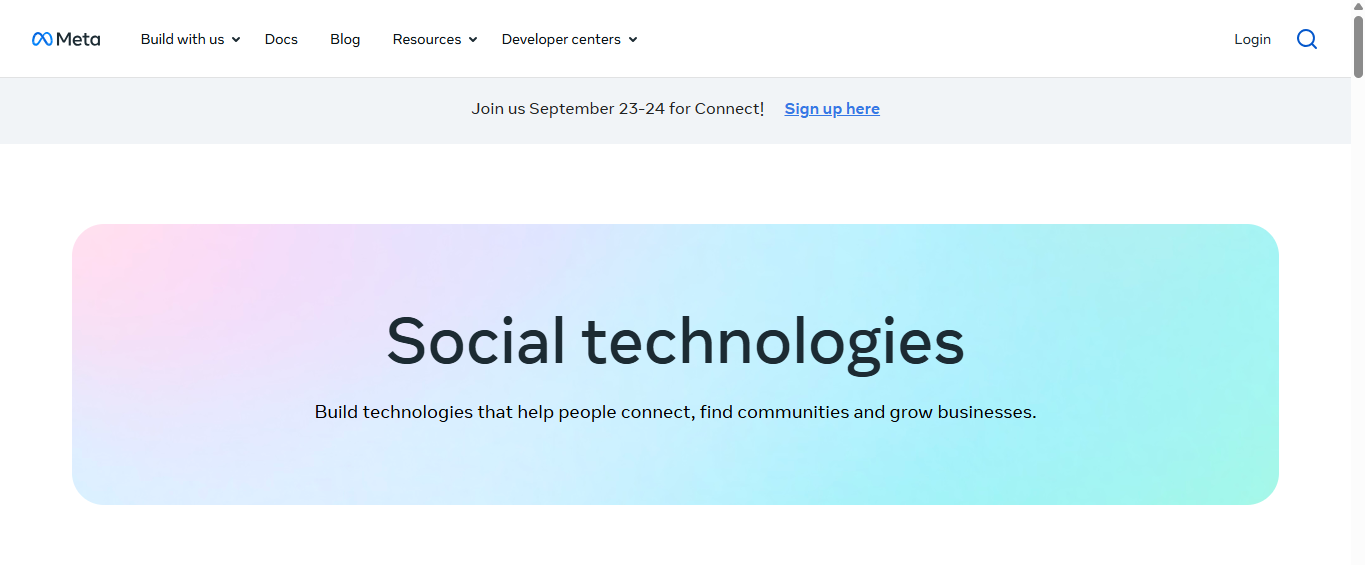
1 minuteVisit the Meta for Developers website in your browser. On the homepage, select Login in the upper-right corner.
Log in to Meta for Developers
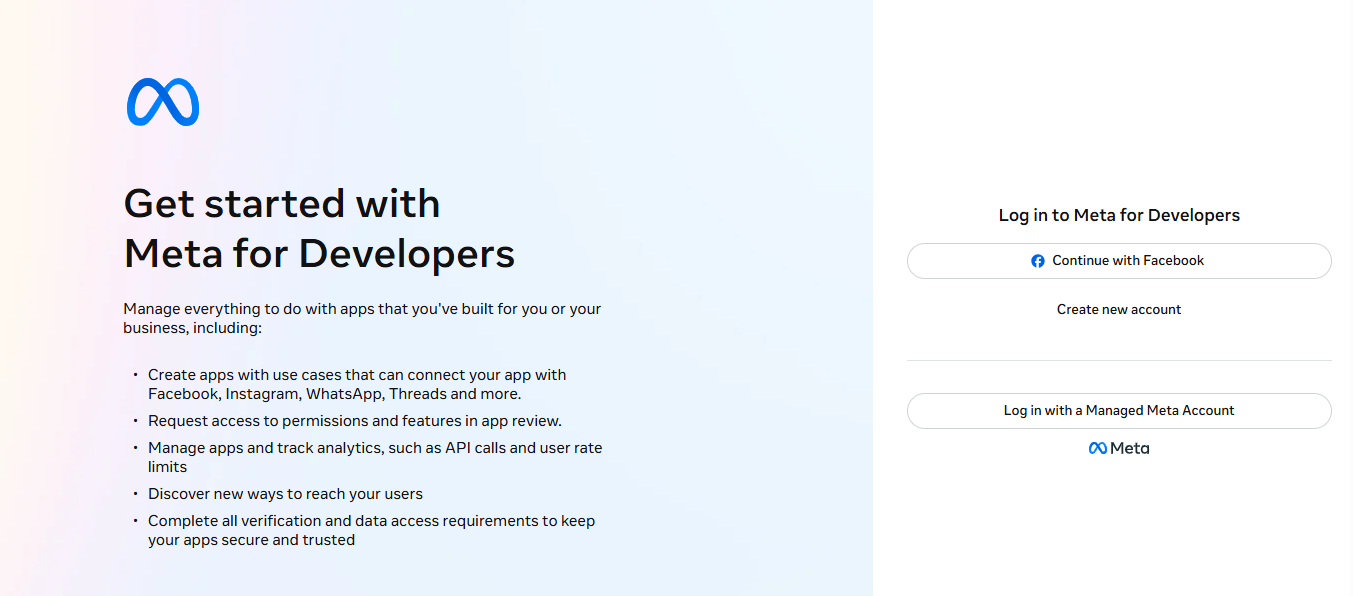
2 minutesYou will be taken to the Meta for Developers login page. Choose Continue with Facebook to use an existing Facebook account, Create new account if you do not already have one, or Log in with a Managed Meta Account when your organization has provided one. For most individual developers and business owners, Continue with Facebook is the appropriate option. Use an account that you control and plan to keep active, because your developer applications will be connected to this account.
Start the developer registration
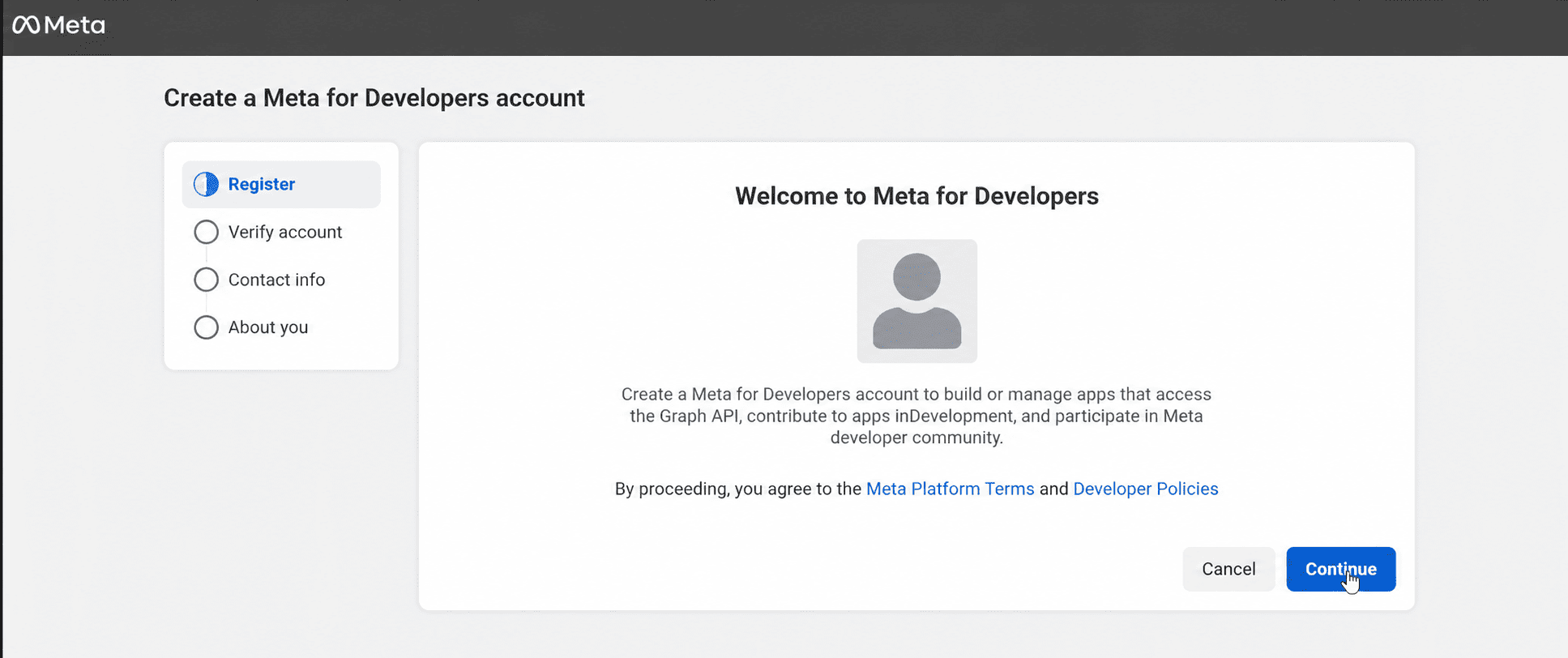
2 minutesAfter logging in, the Welcome to Meta for Developers registration page will appear. Review the displayed information, including the links to Meta's Platform Terms and Developer Policies, then select Continue to proceed. By continuing, you agree to follow Meta's platform terms and developer policies.
Verify your account
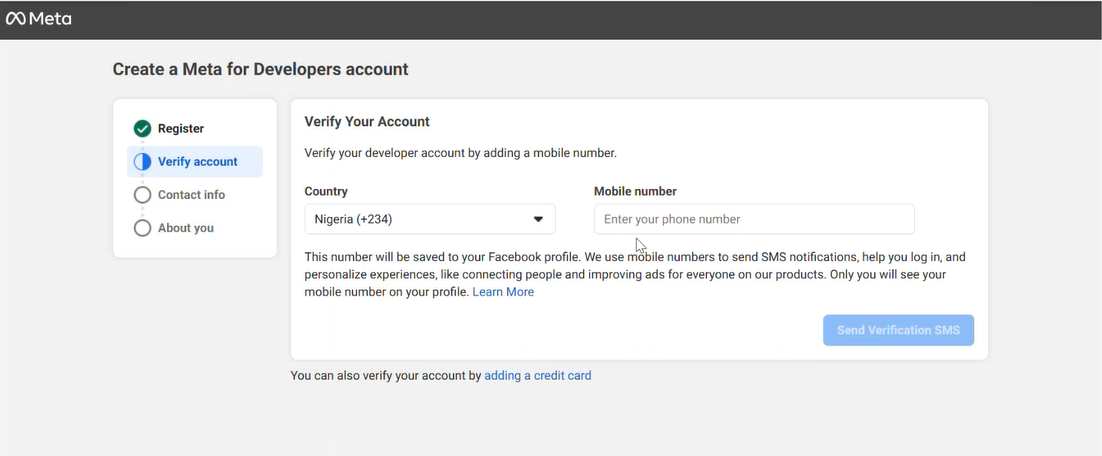
3 to 5 minutesMeta may ask you to verify your developer account using a mobile phone number. Select your country from the Country list, enter an active mobile number in the Mobile number field, and select Send Verification SMS. The phone number should be able to receive text messages. In some cases, Meta may provide another verification method, such as adding a credit card.
Enter the verification code
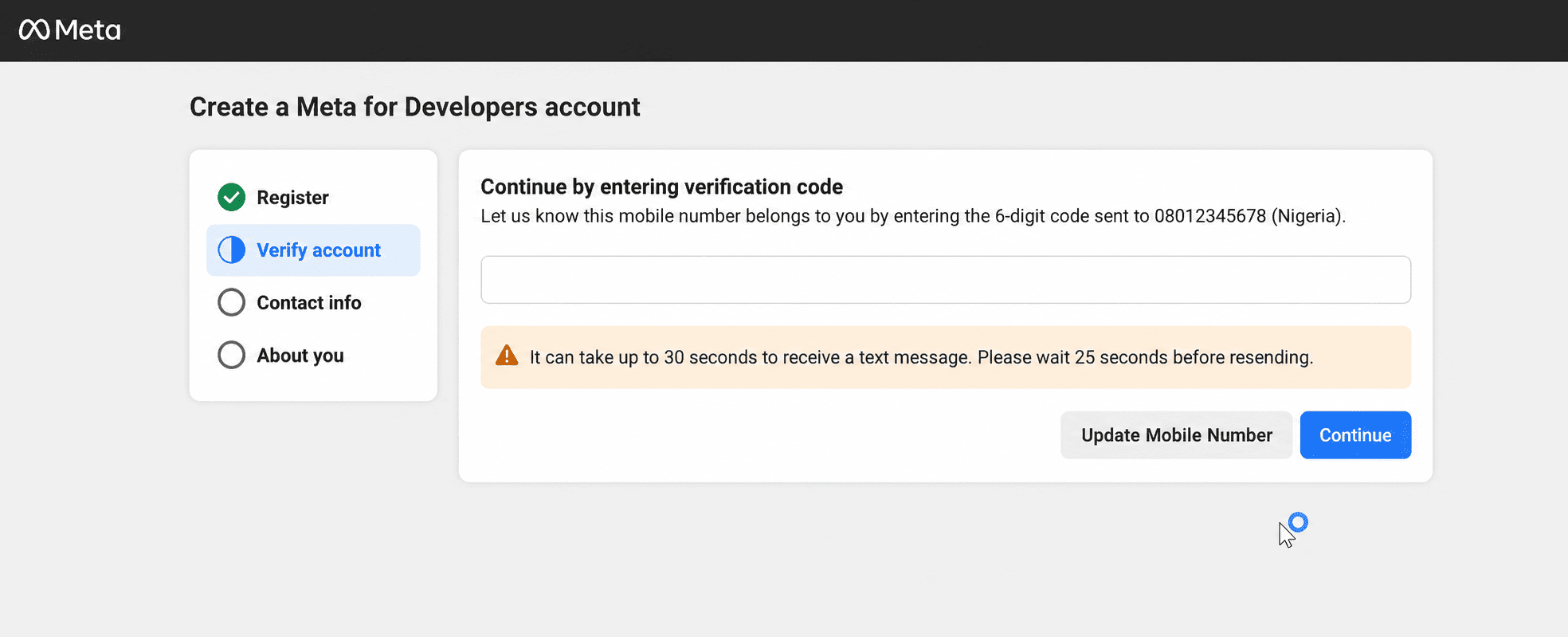
2 minutesMeta will send a six-digit verification code to the mobile number you provided. Check your text messages, enter the six-digit code in the verification field, and select Continue. The text message may take several seconds to arrive.
Review and confirm your email address
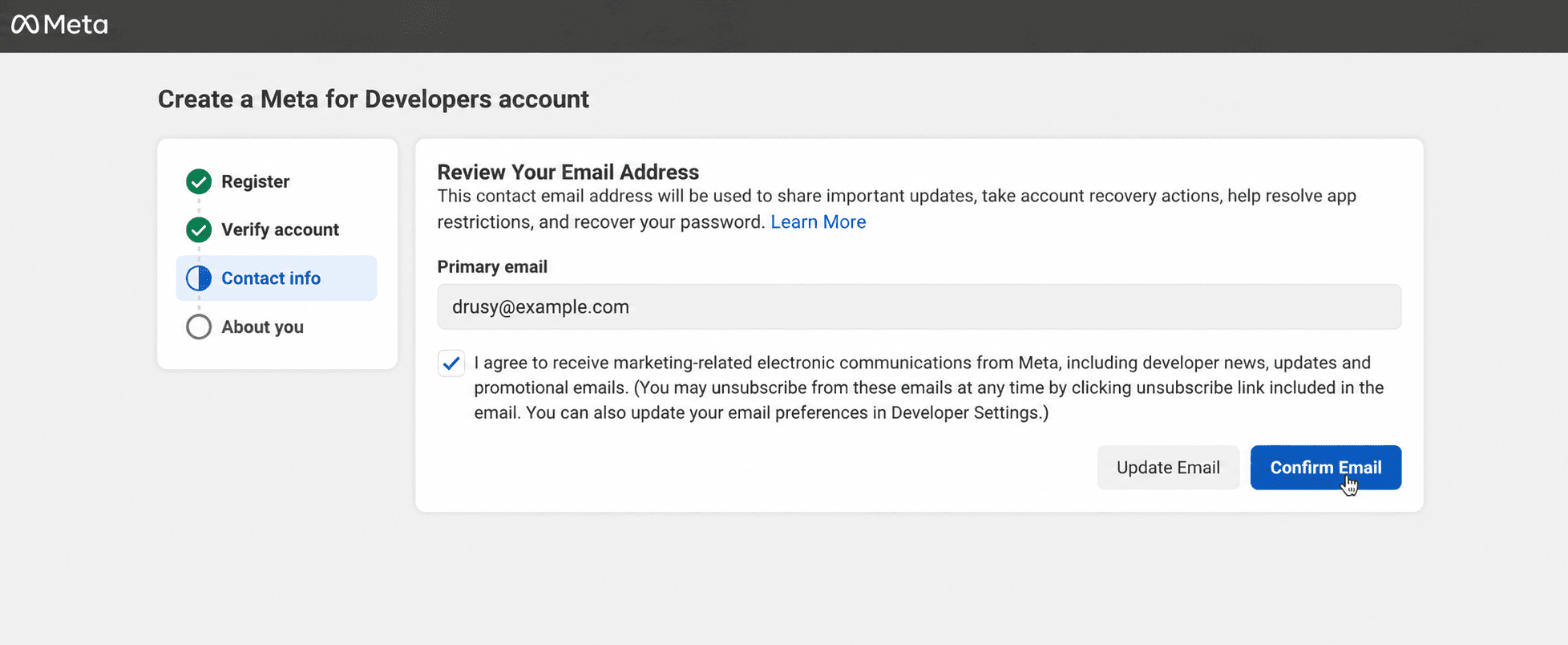
2 minutesMeta will display the primary email address connected to your account. Check that the address is correct and that you can access it, then select Confirm Email when the address is correct or Update Email when you need to use a different address.
Select the role that best describes you
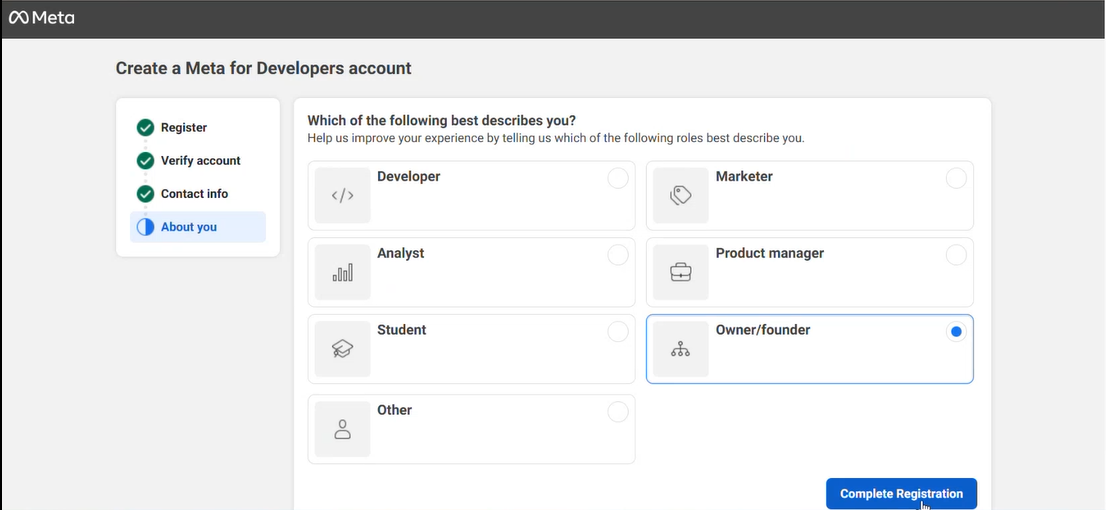
1 minuteChoose the option that most closely matches how you plan to use Meta's developer tools. The available options may include Developer, Marketer, Analyst, Product manager, Student, Owner/founder, or Other. After selecting a role, select Complete Registration.
Confirm that registration is complete
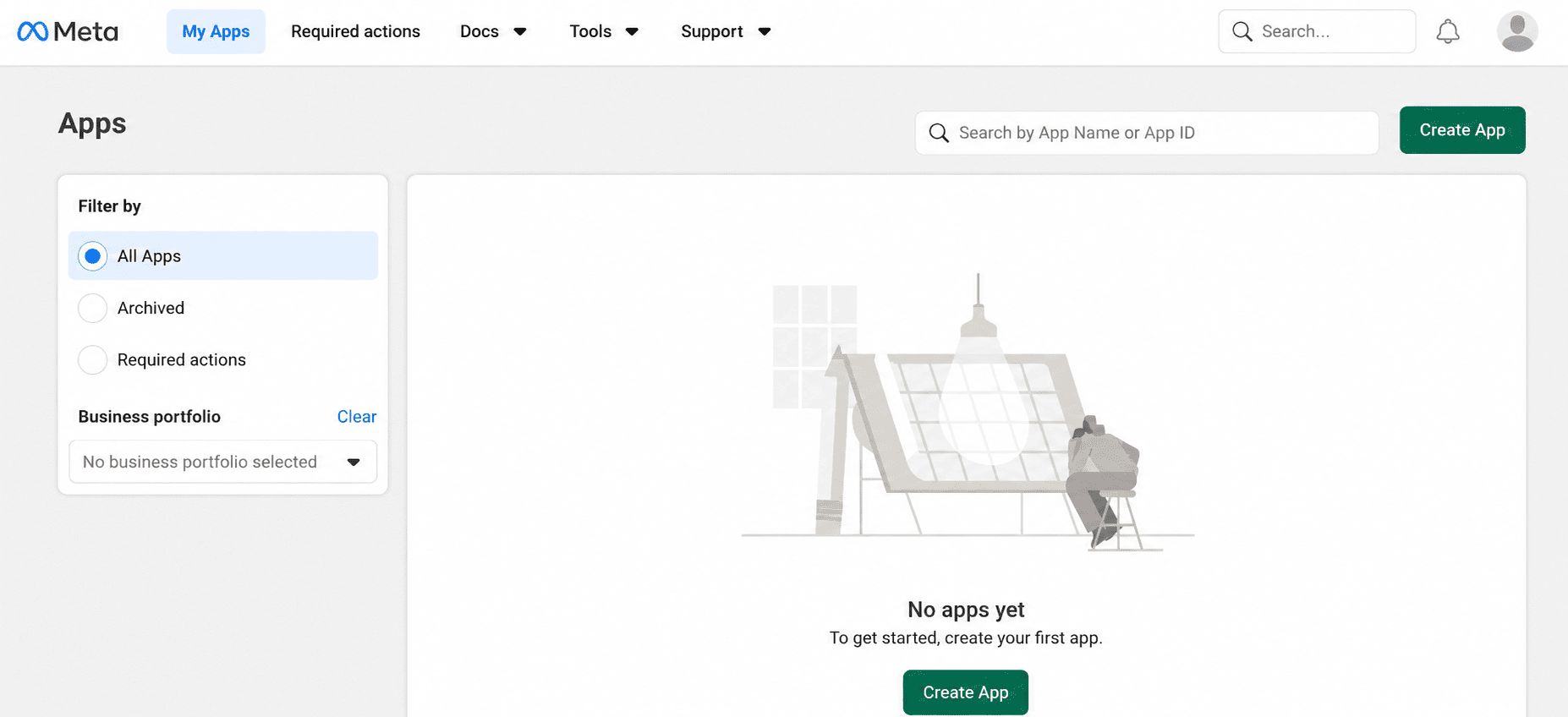
1 minuteAfter completing the registration, you should be redirected to the Meta for Developers dashboard. From the dashboard, you can begin creating a Meta application, selecting an application use case, adding products such as Facebook Login, Instagram, or WhatsApp, requesting permissions through App Review, and configuring security and data-access settings.